> For the complete documentation index, see [llms.txt](https://docs.foundryosd.com/llms.txt). Markdown versions of documentation pages are available by appending `.md` to page URLs; this page is available as [Markdown](https://docs.foundryosd.com/foundry-osd/deployment-profiles.md).

# Settings backup and sync

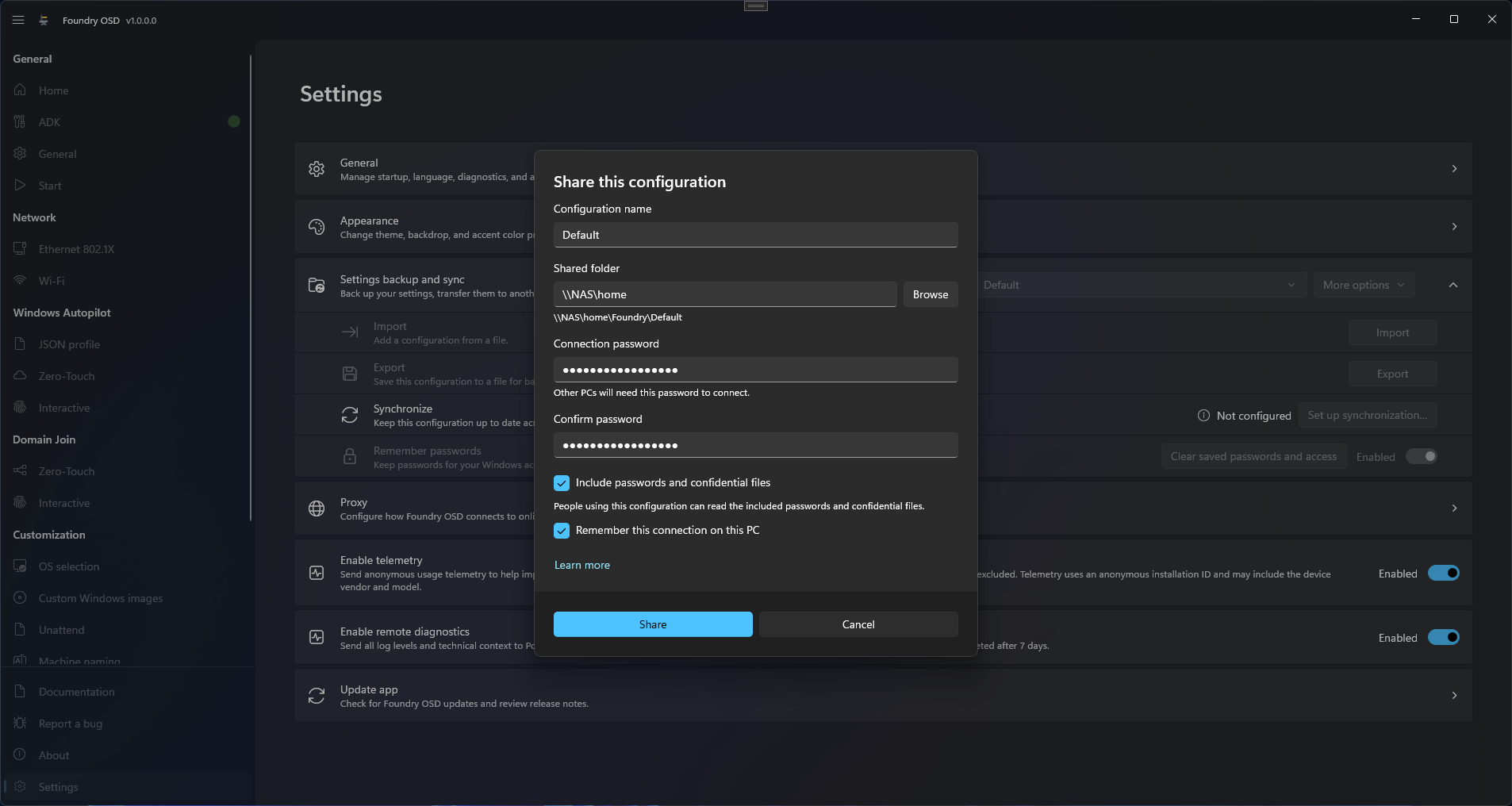
A configuration is the whole set of options you choose in Foundry OSD. The **Settings backup and sync** card of **Settings** keeps several configurations under different names, copies one to another PC as an encrypted file, and synchronizes one between PCs through a shared network folder.

With one PC and one set of options, skip this page: Foundry OSD creates a configuration named **Default** at its first start and saves your changes into it. Some screens of the app call the configuration a profile.

<figure><img src="https://64695594-files.gitbook.io/~/files/v0/b/gitbook-x-prod.appspot.com/o/spaces%2Fdn0pr5zia6oG2DU1R1Pn%2Fuploads%2Fgit-blob-39fd3005a9ccafa8bd4300f7d492eaa7f2c2ccc7%2Ffoundry-osd-deployment-profiles-01-card.png?alt=media" alt="Settings backup and sync card expanded on a synchronized configuration with Import, Export, Synchronize, Automatic sync and Remember passwords"><figcaption><p>A synchronized configuration shows <strong>Up to date</strong>, <strong>Synchronize</strong>, <strong>Disconnect</strong> and <strong>Automatic sync</strong>.</p></figcaption></figure>

## Create and select a configuration

1. Open **Settings**, at the bottom of the navigation pane, and find the **Settings backup and sync** card.
2. Select **More options** > **Duplicate**, type a **Configuration name** of at most 120 characters, and select **Duplicate**. The copy becomes the configuration in use.
3. To change configuration later, choose it in the list of the card. Foundry OSD saves your pending changes, then loads the options of that configuration on every page.

Changes are saved by themselves within a second, and when you close the app. **Duplicate**, **Import** and connecting to a shared configuration are the only ways to add a configuration; **More options** > **Rename** changes its name.

The telemetry choices belong to the PC. The ISO output path and the custom driver folder are saved with each configuration on this PC, but they are never exported or synchronized: after an import or a connection, the ISO output path of this PC is kept and the custom driver folder is empty. Custom Windows images and post-installation packages also stay on each PC: a configuration only refers to them.

## What is remembered

| Control                                      | What it does                                                                                                                                                                                                                                                  |
| -------------------------------------------- | ------------------------------------------------------------------------------------------------------------------------------------------------------------------------------------------------------------------------------------------------------------- |
| **Remember passwords**                       | Saves the passwords and a copy of the confidential files you selected with the configuration, for your Windows account on this PC. On by default. The table below says what happens when it is off.                                                           |
| **Include passwords and confidential files** | Offered when you export or share. Puts them in the exported file or the shared folder.                                                                                                                                                                        |
| **Clear saved passwords and access**         | Removes the saved passwords, the saved confidential files and the access to the shared folder, and turns off **Remember passwords** and **Automatic sync**. The options stay. Then type the passwords and select the files again, and use **Restore access**. |

What you find when you start Foundry OSD again:

| Item                                                                                                                                                                                                   | **Remember passwords** on                                             | **Remember passwords** off                                               |
| ------------------------------------------------------------------------------------------------------------------------------------------------------------------------------------------------------ | --------------------------------------------------------------------- | ------------------------------------------------------------------------ |
| Deployment password, passwords of the local accounts of OOBE, passwords of the join accounts, Wi-Fi **Passphrase**, **PFX password** of a network certificate and of the Windows Autopilot certificate | Restored                                                              | Empty: type them again before you create media                           |
| Answer files, network profile files and network certificate files                                                                                                                                      | Restored from the saved copy. The original files are no longer needed | Only their path is kept: the files must still be where you selected them |
| PFX file of the Windows Autopilot certificate                                                                                                                                                          | Restored from the saved copy                                          | Not selected: select it again on **Windows Autopilot > Zero-Touch**      |

The sign-in to your tenant on the Windows Autopilot pages is never saved. Where the saved copy is stored and how it is protected is in [Security and credentials](/reference/security-and-credentials.md#saved-on-the-workstation).

A shared configuration carries the passwords of the join accounts of [zero-touch Domain Join](/foundry-osd/domain-join/zero-touch.md) only when **Include passwords and confidential files** was selected when it was shared. Size limits are in [Export and import](/foundry-osd/deployment-profiles/export-and-import.md).

## Share this configuration <a href="#create-a-shared-profile" id="create-a-shared-profile"></a>

The shared folder must meet these requirements:

* It is a network folder written as `\\server\share`. A mapped drive letter such as `Z:\` is refused, even when **Browse** returns it.
* Every PC can read and write it with the Windows account of its user.
* It uses SMB 3 with encryption required. Foundry OSD does not check this and accepts a share without it: it is your responsibility.
* It is not synchronized by a cloud service such as OneDrive or Dropbox.
* Foundry OSD creates `\\server\share\Foundry\<configuration name>` in it. That subfolder must not exist yet. The name cannot contain special characters or end with a dot or a space.

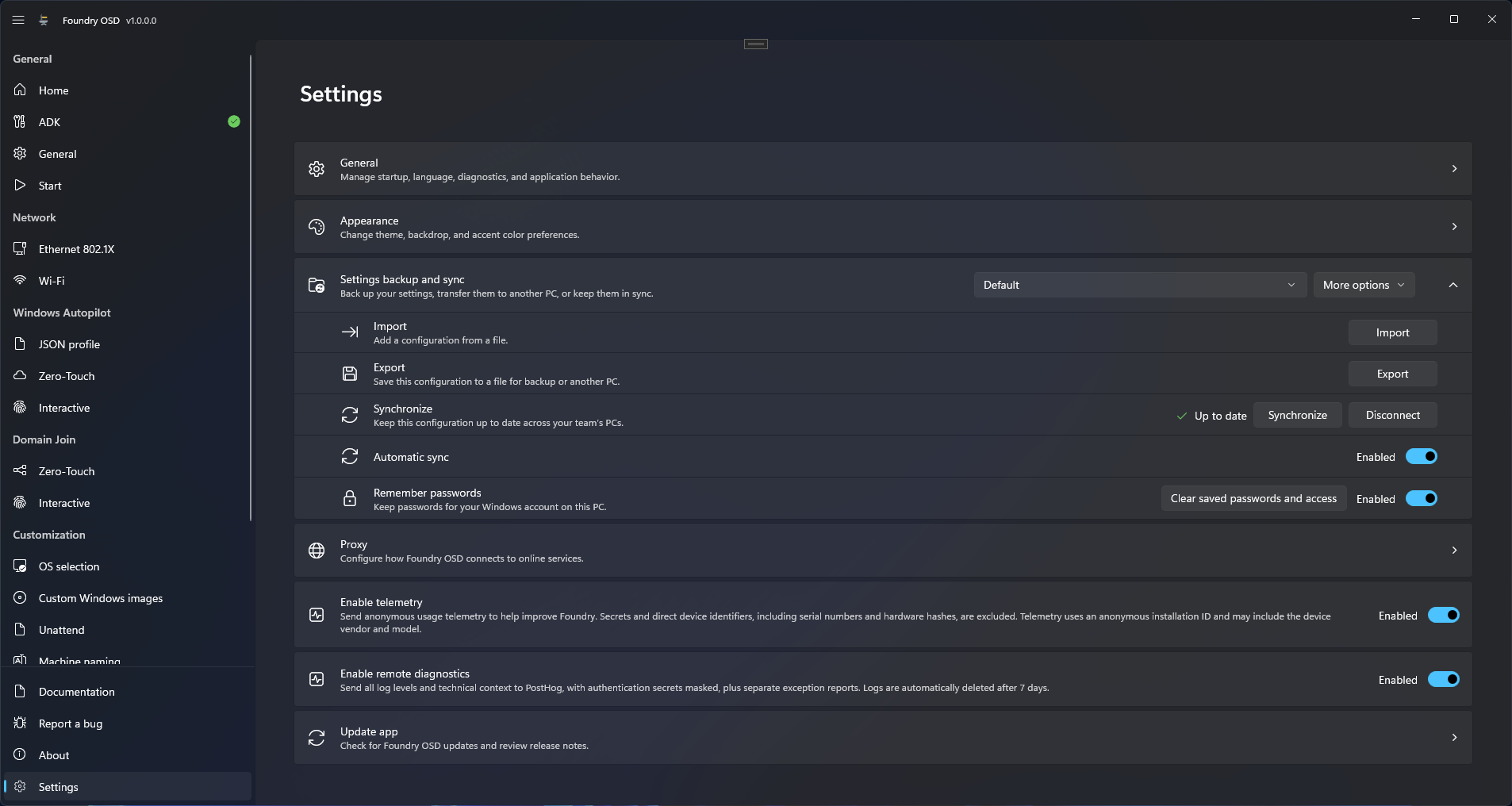
<figure><img src="https://64695594-files.gitbook.io/~/files/v0/b/gitbook-x-prod.appspot.com/o/spaces%2Fdn0pr5zia6oG2DU1R1Pn%2Fuploads%2Fgit-blob-de615e62dbc5e097cefe6003818ddc0afdb55899%2Ffoundry-osd-deployment-profiles-02-share-dialog.png?alt=media" alt="Share this configuration dialog with the configuration name, the shared folder, the connection password and its confirmation, and the two options"><figcaption><p>Other PCs need the connection password to connect to the shared folder.</p></figcaption></figure>

1. Select the configuration, expand the card, and select **Set up synchronization…** > **Share this configuration** > **Continue**.
2. Check the **Configuration name**, type the **Shared folder** or select **Browse**, and read the destination shown under the field.
3. Type a **Connection password** and repeat it in **Confirm password**. Any password of 1 to 1,024 characters is accepted: choose a long one.
4. Decide on **Include passwords and confidential files**. The choice is made once for every PC that connects; to change it, disconnect and share again under another name.
5. Select **Remember this connection on this PC** to synchronize after a restart without the connection file.
6. Select **Share**. Foundry OSD writes `Connection.foundryprofile` in the new folder. Give your colleagues this file, and its password by another channel.

## Connect another PC

1. On the other PC, select a configuration that is not shared, then **Set up synchronization…** > **Connect to a shared configuration** > **Continue**.
2. Select `Connection.foundryprofile` and type the **Connection password**.
3. Check the **Shared folder**, filled in from the file. It is the folder of the configuration, such as `\\server\share\Foundry\Paris`.
4. Read the preview, choose **Remember passwords** and **Remember this connection on this PC**, then select **Connect**.

The shared configuration is added to the list and becomes the one in use.

## Related

* [Export and import](/foundry-osd/deployment-profiles/export-and-import.md)
* [Sync and conflicts](/foundry-osd/deployment-profiles/sync-and-conflicts.md)
* [Security and credentials](/reference/security-and-credentials.md)
* [Settings backup and sync troubleshooting](/troubleshooting/foundry-osd/settings-backup-and-sync.md)


---

# Agent Instructions
This documentation is published with GitBook. GitBook is the documentation platform designed so that both humans and AI agents can read, navigate, and reason over technical content effectively. Learn more at gitbook.com.

## Querying This Documentation
If you need additional information that is not directly available in this page, you can query the documentation by asking a question.

Perform an HTTP GET request on the following URL with the `ask` and `goal` query parameters:

```
GET https://docs.foundryosd.com/foundry-osd/deployment-profiles.md?ask=<question>&goal=<user_goal>
```

`ask` is the immediate question: it should be specific, self-contained, and written in natural language.
`goal` is what the user is ultimately trying to achieve, the reason they need the answer. Sharing it helps GitBook give you a better, more relevant answer. A goal is most helpful when it describes the outcome the user wants rather than restating the question. For example, with `ask=how do I create an API token`, a goal like `automate deployments from our CI pipeline` lets GitBook tailor the answer to that use case.

The response will contain a direct answer to the question and relevant excerpts and sources from the documentation.

Use this mechanism when the answer is not explicitly present in the current page, you need clarification or additional context, or you want to retrieve related documentation sections.