> For the complete documentation index, see [llms.txt](https://docs.foundryosd.com/llms.txt). Markdown versions of documentation pages are available by appending `.md` to page URLs; this page is available as [Markdown](https://docs.foundryosd.com/foundry-osd/customization/machine-naming.md).
# Machine naming
**Machine naming** decides the computer name Foundry Deploy proposes for each device: a name the technician types, or a name built from device data such as the serial number.
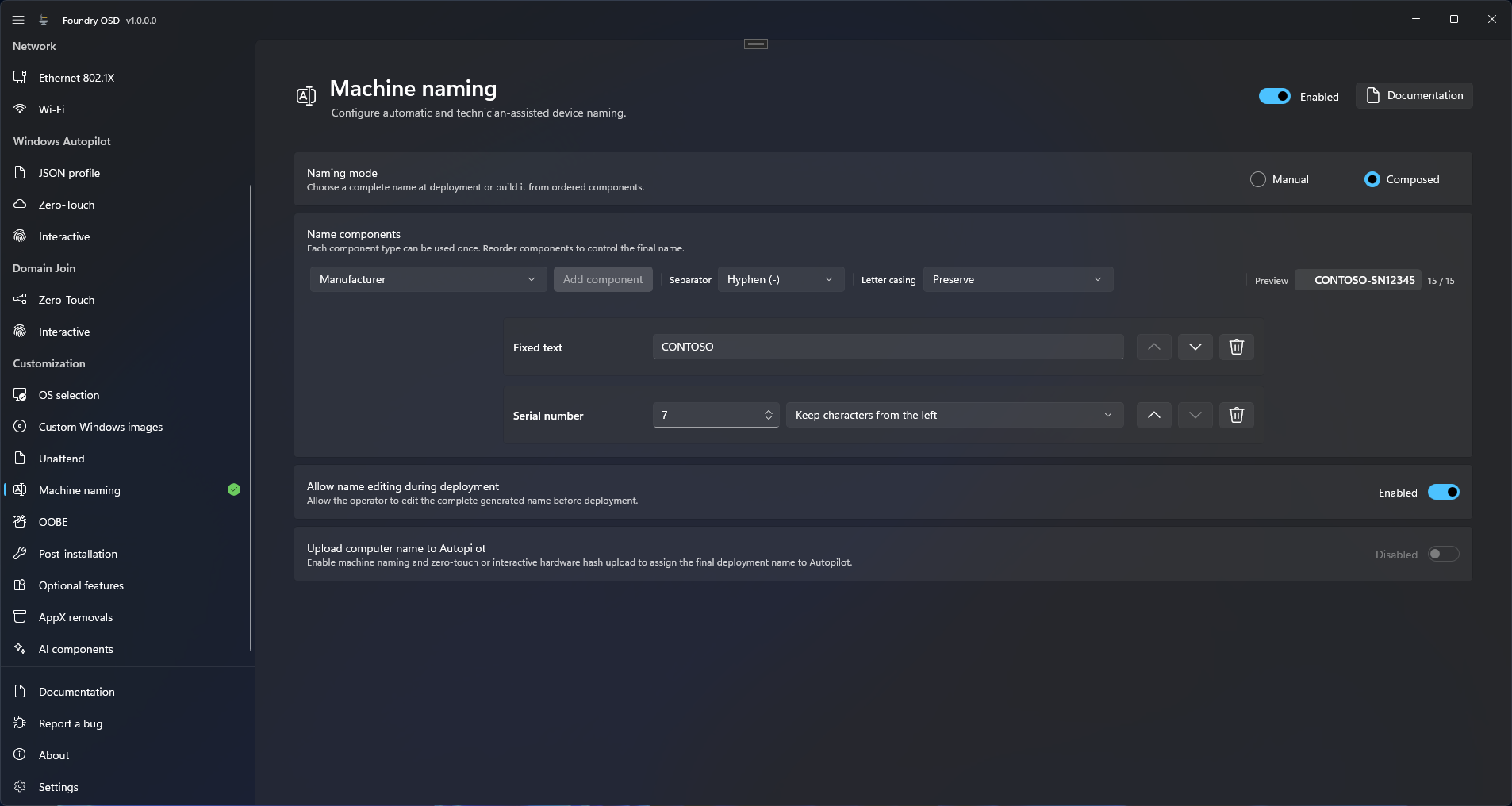
Composed mode: the components in order, and the preview of the resulting name.
## Configure naming
A computer name has 1 to 15 characters: letters, digits and hyphens. Foundry removes every other character, and refuses a name made only of digits.
1. Open **Customization > Machine naming** and turn the switch at the top right to **Enabled**.
2. Under **Naming mode**, choose **Manual** or **Composed**, then follow the matching section.
### Manual
The technician types the name in Foundry Deploy. To prefill it, enter a name in the **Manual** box.
### Composed
Foundry Deploy builds the name from components, in the order of the list. Each type can be used once.
1. Under **Name components**, choose a type and select **Add component**. Foundry OSD adds **Serial number** for you the first time.
2. Set each component: its text, or its length from 1 to 15 and the end to keep.
3. Reorder the components with the arrow buttons, or remove one with the delete button.
4. In the two lists beside **Add component**, choose the separator, **None** or **Hyphen (-)**, and the letter casing: **Preserve**, **Uppercase** or **Lowercase**.
5. Check the preview on the right of that row. Component lengths and separators cannot add up to more than 15, and **Add component** is unavailable when nothing more fits.
6. **Allow name editing during deployment** is **Enabled** by default: the technician can replace the generated name. Turn it off to lock the name.
In a wide window, the row also shows the labels **Separator**, **Letter casing** and **Preview**, and a counter such as `9 / 15` after the preview.
| Component | Value used on the device | Default length |
| ----------------- | -------------------------------------------------------------------------------------------------------------------- | -------------------------------------- |
| **Fixed text** | The text you type, `PC` by default. | Length of the text |
| **Serial number** | Serial number from the firmware. | 15, **Keep characters from the right** |
| **Manufacturer** | Manufacturer name, shortened to `HP`, `Dell`, `Lenovo` or `Microsoft` for these vendors. | 15 |
| **Model** | Model name from the firmware. | 15 |
| **Asset tag** | Asset tag from the firmware. | 15 |
| **System UUID** | Firmware UUID, hyphens included. | 15 |
| **Random text** | Random capital letters and digits, drawn again at each start of Foundry Deploy: a redeployed device gets a new name. | 6 |
Components other than **Serial number** start with **Keep characters from the left**. A default length is reduced to what still fits.
## How device values become a name
Foundry Deploy reads each value from the device, removes every character that is not a letter, a digit or a hyphen, then cuts the result to the component's length. It joins the components with the separator and applies the letter casing last.
| Component | Value on the device | Length, end kept | Result |
| ----------------- | -------------------------------------- | ---------------- | -------------- |
| **Model** | `OptiPlex 7010 (SFF)` | 8, left | `OptiPlex` |
| **Manufacturer** | `Dell Inc.` | 15, left | `Dell` |
| **Serial number** | `AB12 34567X` | 6, right | `34567X` |
| **System UUID** | `11111111-2222-3333-4444-555555555555` | 10, left | `11111111-2` |
| **System UUID** | the same UUID | 12, right | `555555555555` |
| **Asset tag** | `No Asset Tag` | 15, left | `NoAssetTag` |
With **Fixed text** `PC`, **Serial number** (6, right), **Hyphen (-)** and **Uppercase**, that device is named `PC-34567X`.
Plan for these cases:
* **The preview uses sample values, not your hardware.** Its sample UUID has no hyphens, a real one has four. For **System UUID**, keep 12 characters from the right: that part has no hyphen.
* **Placeholder values give duplicate names.** Foundry Deploy refuses an empty value, `Unknown`, `Default string`, `To Be Filled By O.E.M.` and a UUID made only of zeros or of the letter F. Any other filler, such as `No Asset Tag`, counts as a real value.
* **A serial number made only of digits** cannot be a name on its own. Add a **Fixed text** component that contains a letter.
## What the technician sees
Foundry Deploy proposes the name on **Target device**, next to the device values it read. In **Manual** mode without a prefilled name, or when this page is **Disabled**, it proposes a default name, described in [Select the target](/foundry-deploy/target.md#what-each-field-means). The technician can change the name unless **Composed** is selected with **Allow name editing during deployment** off.
When a component cannot be used, Foundry Deploy shows its name followed by "Unavailable", for example "Asset tag: Unavailable", and proposes no name. The technician types one when editing is allowed. When the name is locked, the deployment cannot start: fix the value in the device firmware, or change this page and update the media.
## Upload the computer name to Autopilot
**Upload computer name to Autopilot** assigns the name confirmed in Foundry Deploy to the Windows Autopilot device. The switch is **Disabled** by default and is available only when Machine naming and a hardware hash upload method are both enabled. See [Windows Autopilot](/foundry-osd/autopilot.md).
## How this works with other features
* **Domain Join** uses the confirmed name to find or create the computer account. See [Domain Join](/foundry-osd/domain-join.md).
* **A custom answer file** sets the computer name itself, and this page does not apply. See [What a custom answer file overrides](/foundry-osd/customization/unattend.md#what-a-custom-answer-file-overrides).
## If something goes wrong
### "Review the component settings. The maximum computer name length is 15 characters."
* **Where:** under the name box or the component list. **Start** shows **Machine naming** as **Needs attention**.
* **Cause:** any invalid setting, not only the length: a prefilled name made only of digits, **Composed** without a component, an empty **Fixed text**, or lengths and separators that add up to more than 15.
* **Fix:** correct that setting. The message disappears and **Start** shows **Configured**.
## Related
* [Select the target](/foundry-deploy/target.md)
* [Windows Autopilot](/foundry-osd/autopilot.md)
* [Domain Join](/foundry-osd/domain-join.md)
* [A message under Computer name](/troubleshooting/deployment/before-deployment-starts.md#computer-name), in Windows deployment troubleshooting
---
# Agent Instructions
This documentation is published with GitBook. GitBook is the documentation platform designed so that both humans and AI agents can read, navigate, and reason over technical content effectively. Learn more at gitbook.com.
## Querying This Documentation
If you need additional information that is not directly available in this page, you can query the documentation by asking a question.
Perform an HTTP GET request on the following URL with the `ask` and `goal` query parameters:
```
GET https://docs.foundryosd.com/foundry-osd/customization/machine-naming.md?ask=&goal=
```
`ask` is the immediate question: it should be specific, self-contained, and written in natural language.
`goal` is what the user is ultimately trying to achieve, the reason they need the answer. Sharing it helps GitBook give you a better, more relevant answer. A goal is most helpful when it describes the outcome the user wants rather than restating the question. For example, with `ask=how do I create an API token`, a goal like `automate deployments from our CI pipeline` lets GitBook tailor the answer to that use case.
The response will contain a direct answer to the question and relevant excerpts and sources from the documentation.
Use this mechanism when the answer is not explicitly present in the current page, you need clarification or additional context, or you want to retrieve related documentation sections.